Insights
Insights helps you explore analytics with natural-language questions. It can summarize trends, compare periods, investigate anomalies, and point you back to dashboard views.
Open Insights
Open the Nexly dashboard and choose Insights from the main navigation. Insights opens above the current page in a compact window. On desktop, you can move or resize the window, or expand it when you need more room.
Insights opens with the app scope you used last time (or All properties). Dashboard shortcuts such as Explain in Insights on charts and reports open Insights with the relevant property already selected.
To begin a new question about the property you are viewing, open its page menu and choose Property Insights. The property is selected automatically and its dashboard remains behind the conversation.
If you do not see Insights, it may not be enabled for your account or plan yet.
Explain from anomalies and reports
When you already have a spike, drop, or weekly/monthly report open, choose Explain in Insights. Nexly opens Insights for that property and starts with a prompt pinned to the incident hour or report period, so you skip retyping the context.
You can start from:
- A chart flag popover on the property dashboard.
- A row on the property Anomalies page.
- The header of a weekly or monthly report (next to the report actions menu).
See Incidents and anomalies and Reports for where the button appears in those flows.
Suggest funnels
From Settings → Funnels, choose Suggest in Insights. Nexly opens Insights for that property and asks the assistant to propose funnel configurations from your events, entry pages, and volumes. Each proposal appears as a preview card with the suggested name, counting identity, and steps — review it, then create the funnel with one click (or dismiss the card). Creating a funnel requires the Editor role or higher.
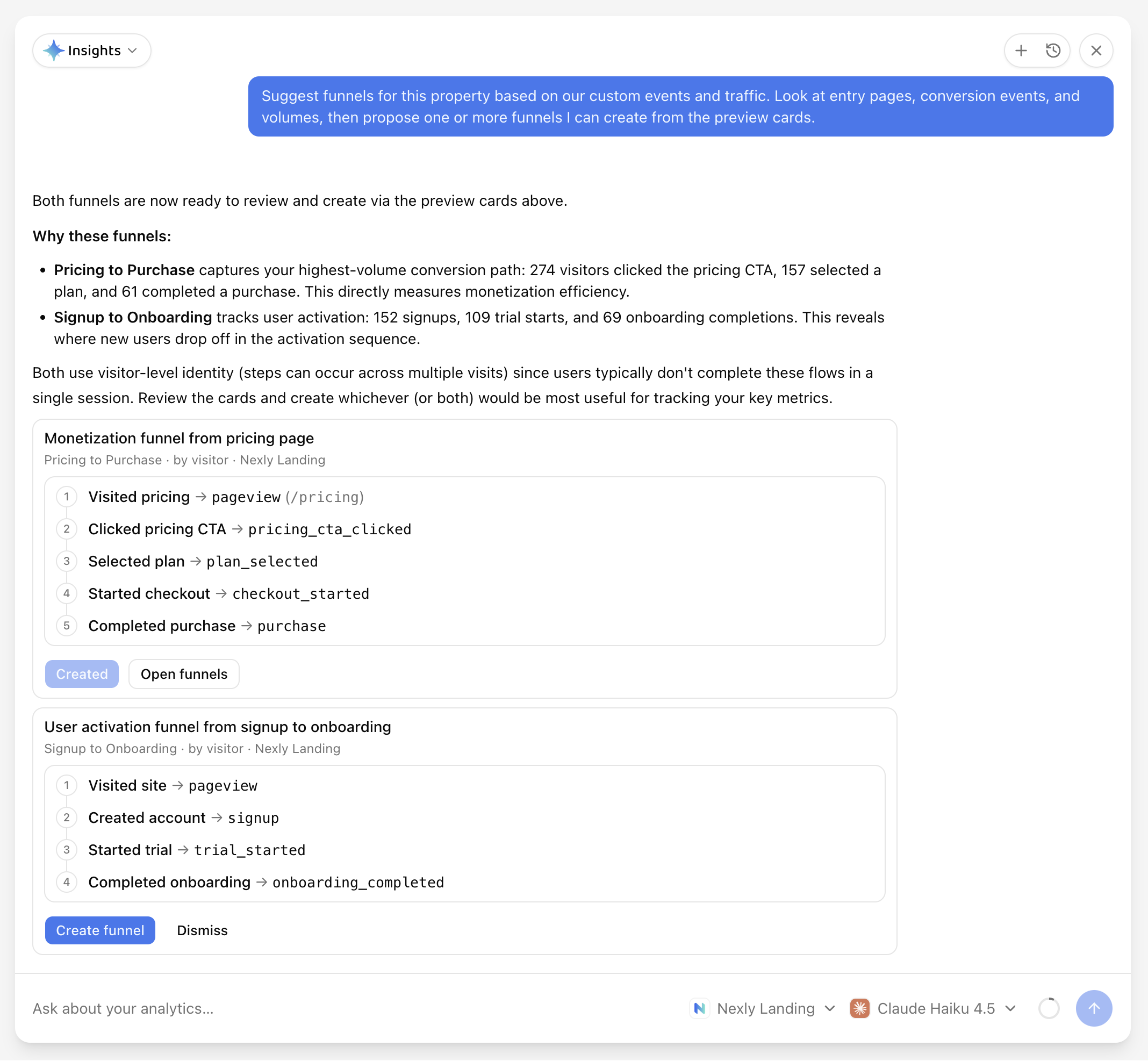
You can also ask in chat ("suggest funnels for this property") or run the built-in Suggest funnels Skill. See Funnels for how funnel definitions work.
What to ask
Ask focused questions about a property, date range, channel, page, or custom event.
Good examples:
- "Why did traffic spike yesterday?"
- "Compare paid and organic visitors for the last 28 days."
- "Which pages drive the most signups?"
- "Show custom events that changed the most this week."
- "Summarize crawler activity this month."
Skills
Select the Insights pill above the chat to open a menu of Skills — saved prompt templates you can run with one click. Nexly ships a built-in set, and you can save your own. See Skills in this section for details.
Choose the analysis scope
Use the app selector near the composer to decide what the assistant should inspect.
Choose All properties for account-wide questions, such as "Which property grew the most this month?" or "Summarize all active apps."
Choose a specific app when the question is about one property, so broad prompts such as "What happened today?" stay focused on that app. Entry points like Explain in Insights preselect the property they came from.
The selected scope is visible in the composer. If a chat is resumed later, Nexly restores the app scope saved with that chat.
Choose a model
Insights can offer several AI models depending on your plan. Use the model selector to choose which model answers new questions.
The selected provider is remembered locally for new chats. Existing chats restore the provider they were created with, so a resumed investigation behaves the same way it did before.
Use the default model for most analytics questions. Switch models when your team has a preference for speed, reasoning depth, or a provider-specific workflow.
Chat history
Insights chats are saved to your account so you can resume previous investigations. A saved chat keeps its messages, selected app scope, and selected provider. Pin an important chat to keep it at the top of the history list.
Use chat history when an investigation spans several sessions, such as launch monitoring, anomaly follow-up, or weekly acquisition review.
Assistant widgets
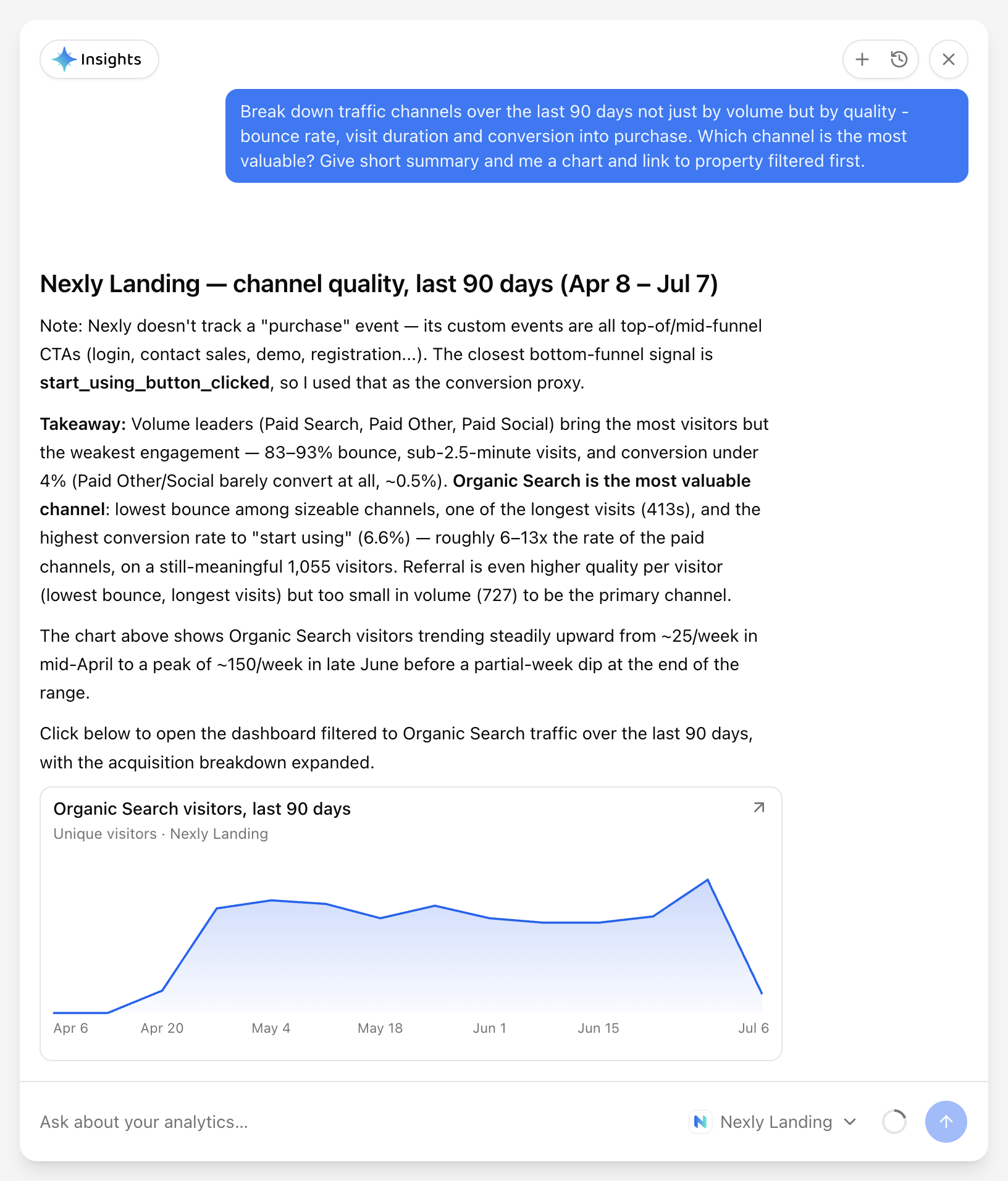
Insights can return more than text. Depending on the question, responses may include:
- Time-series charts.
- Funnel charts for configured funnels.
- Funnel proposal cards you can create or dismiss.
- Compare cards.
- Links back to filtered dashboard views.
- Report or anomaly references.
- Suggested follow-up questions.
- Inline example prompts (blue Insights-marked text) you can click to send as your next message.
Use dashboard links when you want to verify the answer directly in the product. Click an inline example prompt when you want to run that question without retyping it.
Data access
Insights inspects metrics and breakdowns; it does not change billing, access, or ingestion controls on its own. When it proposes a funnel, nothing is saved until you confirm Create funnel on the preview card (using your Editor permissions).
The assistant can only inspect properties your account can access. If the selected app becomes unavailable, Nexly silently switches the scope back to All properties.
Token and context window meter
The composer can show a context-window meter near the send button. It reflects how much of the selected model's context window the current chat is using.
Hover the meter to see cumulative token usage for the chat, including input tokens, output tokens, request count, and turn count.
Best practices
Ask one question at a time. Include the property, period, metric, or segment when it matters.
If an answer looks surprising, open the linked dashboard view and compare the underlying widgets.
Availability
Insights may not be available on every plan or account yet.