Funnels
A funnel is a sequence of events your visitors should complete — for example saw pricing → clicked a plan → signed up. Nexly counts how many visitors (or sessions) reached each step within the selected date range, so you can see where people drop off.
Funnels are defined per property in Settings → Funnels. They appear as a widget on the property dashboard and on the dedicated Funnels page.
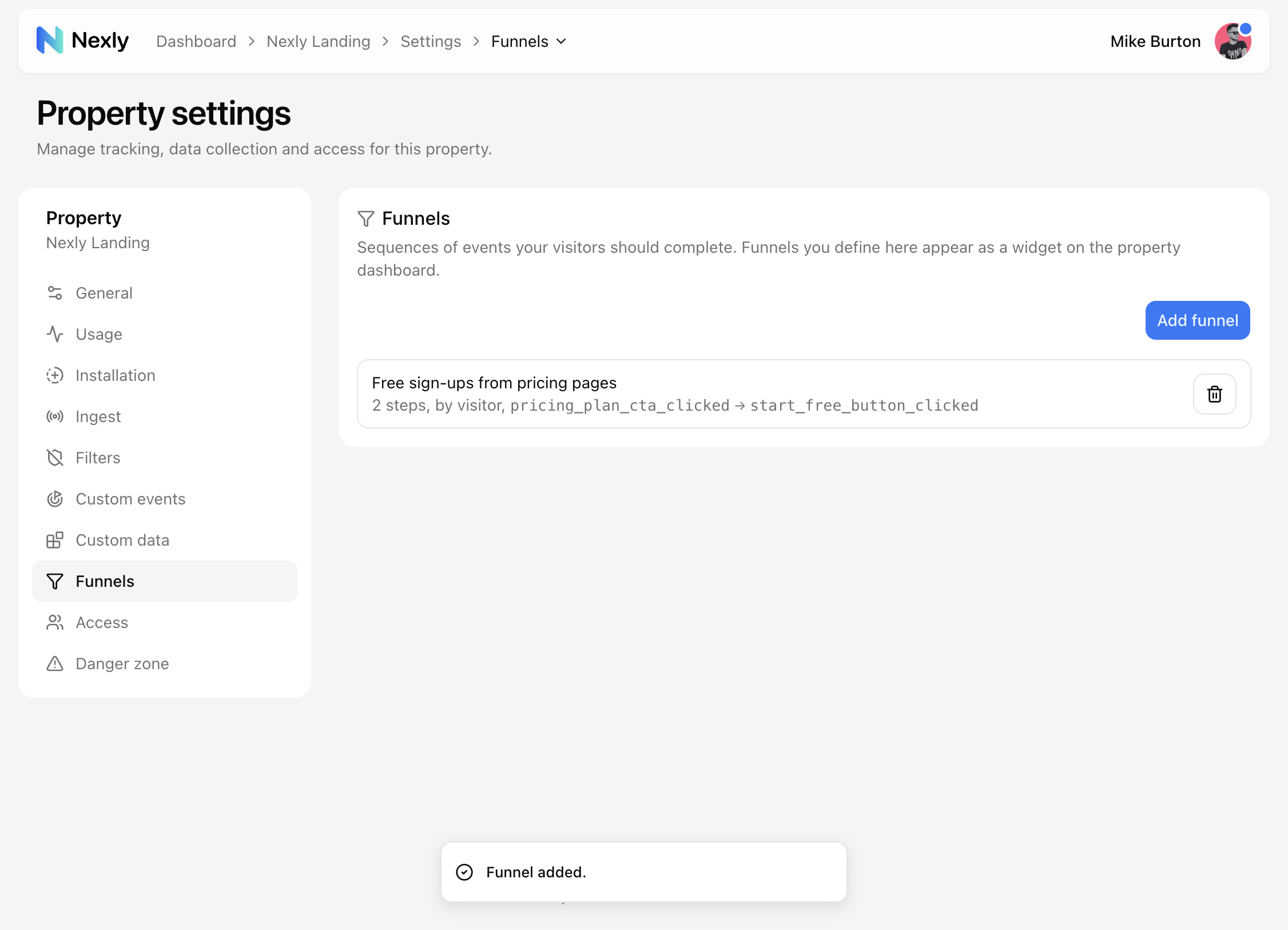
Create a funnel
Open your property, go to Settings → Funnels, and click Add funnel. Or choose Suggest in Insights to let Insights propose funnel steps from your events and traffic; each suggestion appears as a preview card in chat where you can create it with one click (see Insights for how the proposal cards work).
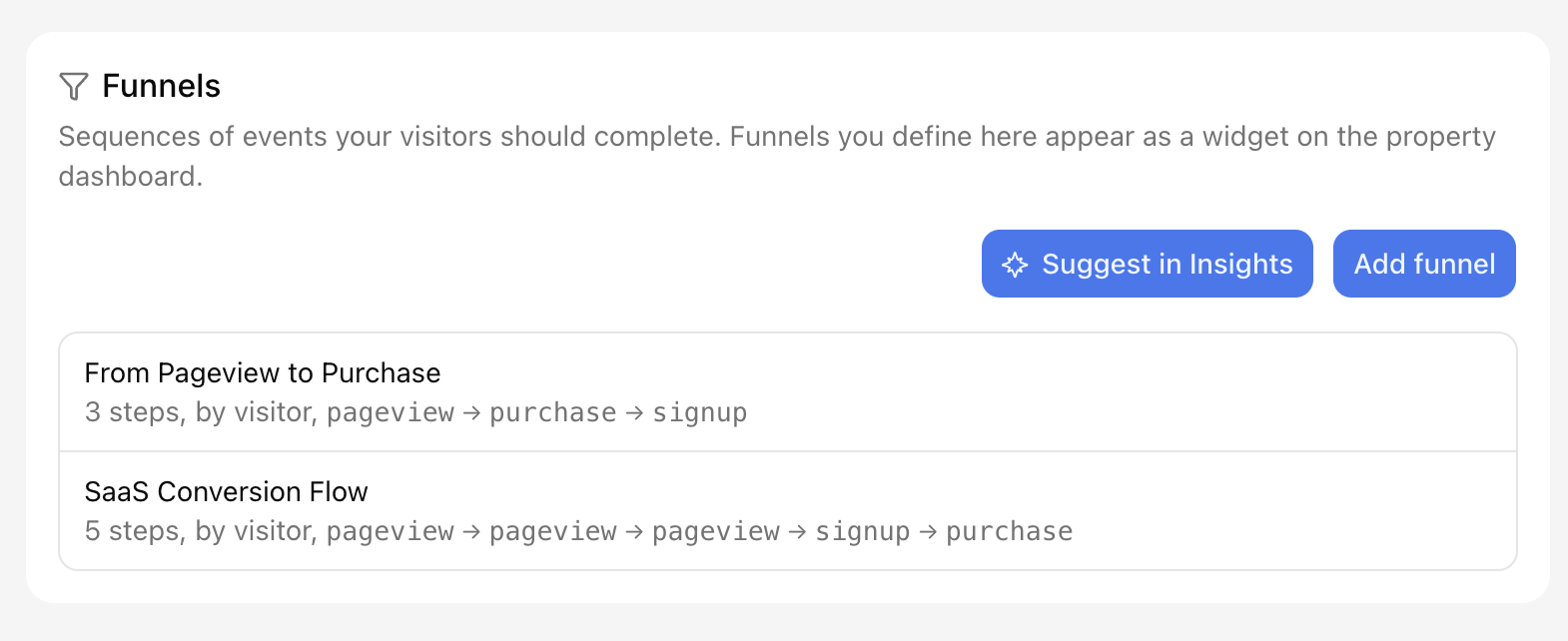
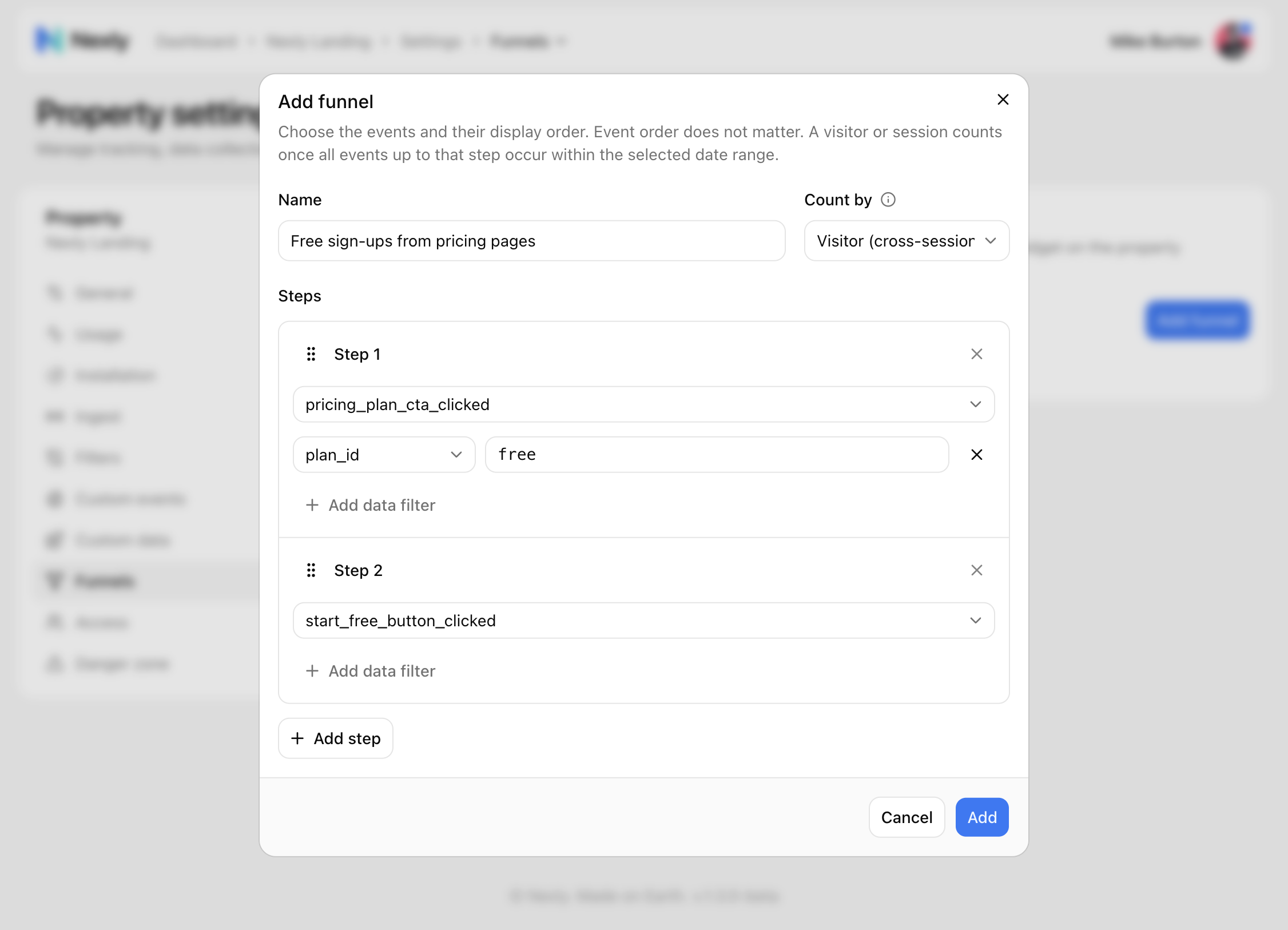
Each funnel has:
- Name — how the funnel appears in the widget and settings list (up to 80 characters).
- Count by — the identity used for counting:
- Visitor (cross-session) — steps may happen across different visits within the date range. Best for longer journeys such as sign-ups.
- Session (single visit) — all steps must happen within one visit. Best for short in-page flows.
- Steps — between 2 and 10 steps. Drag the grip icon to reorder how steps are displayed.
For each step you pick an event:
- Pageview — the built-in pageview event. You can optionally restrict it to an exact page path (for example
/pricing). - Any active custom event from your registry (see Custom events and properties).
Click the step title (Step 1, Step 2, …) to give it a friendly display label; by default the event name is used.
Data filters
A step can be narrowed down with data filters on custom properties: the step only matches events where a property equals a specific value. In the example above, step 1 counts pricing_plan_cta_clicked only when plan_id equals free.
Data filters are available once you have active keys under Settings → Custom data. Multiple filters on one step are combined with AND, up to 8 filters per step.
How counting works
Funnels in Nexly are order-independent within the date range:
- A visitor or session counts for step N once all events for steps 1 through N have occurred at least once within the selected date range (and within one visit, if counting by session).
- The order in which the events happened does not matter — steps define the display order and the set of required events, not a strict sequence.
- Step counts never increase from one step to the next: step 1 is always the largest ("entered"), and each following step is a subset of the previous one.
Bot traffic is excluded automatically.
The funnel widget
Every funnel you define shows up in the Funnel widget on the property dashboard, right below Custom analytics (see Dashboard widgets for screenshots of both views). Use the selector in the widget header to switch between funnels, and Manage to jump back to settings.
The widget follows the dashboard date range — there is no separate conversion window. It also respects active dashboard filters: the funnel is limited to visitors or sessions that match the filters in the selected period.
Two views are available:
- Funnel — a classic funnel chart. Each segment shows the step count; the tooltip adds the conversion from step 1 ("% of entered") and how many dropped at that step.
- Layers — a stacked area chart across the funnel steps. Each layer is the cohort that stopped at a given step; the bottom layer is everyone who completed the funnel.
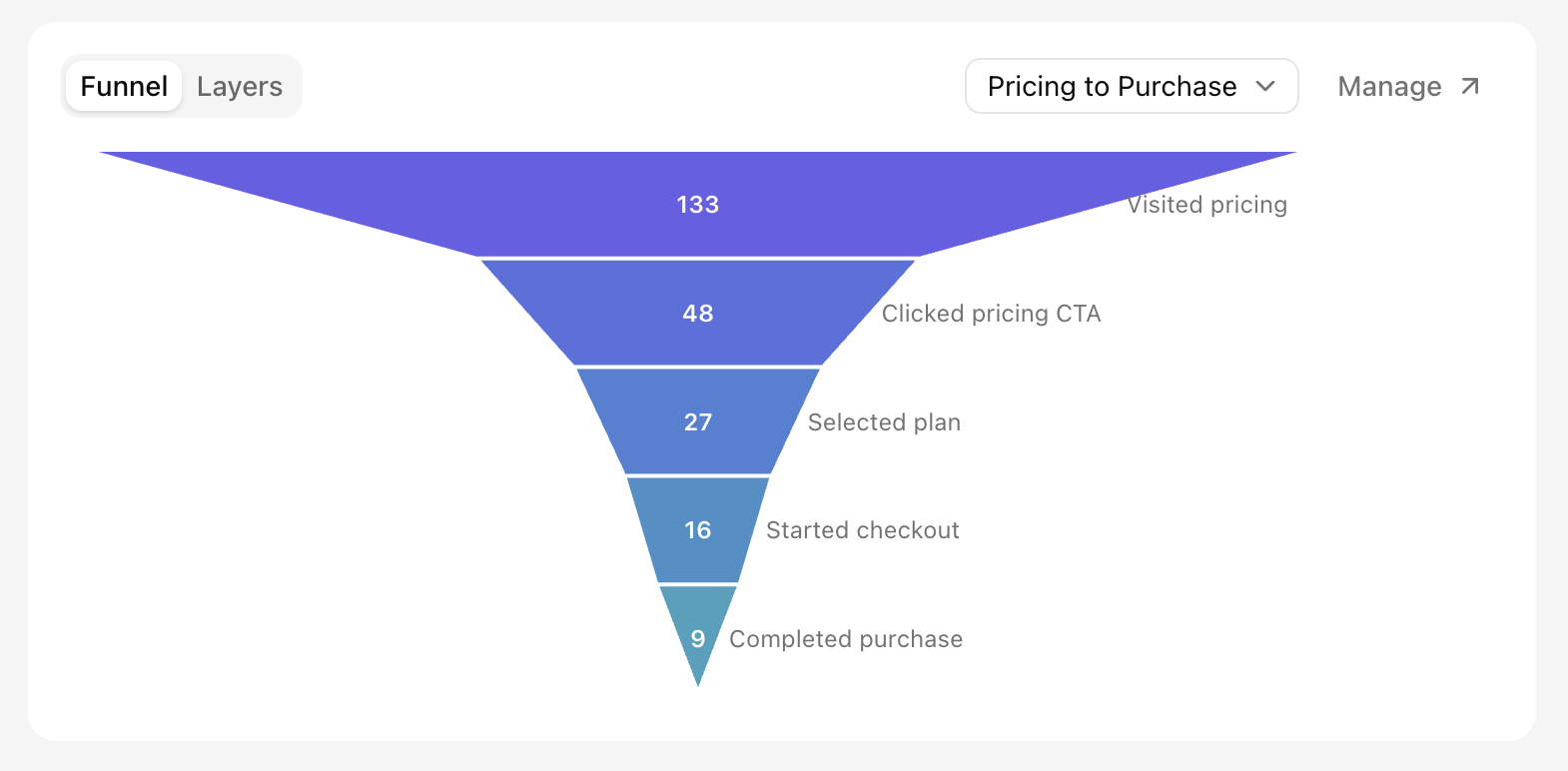
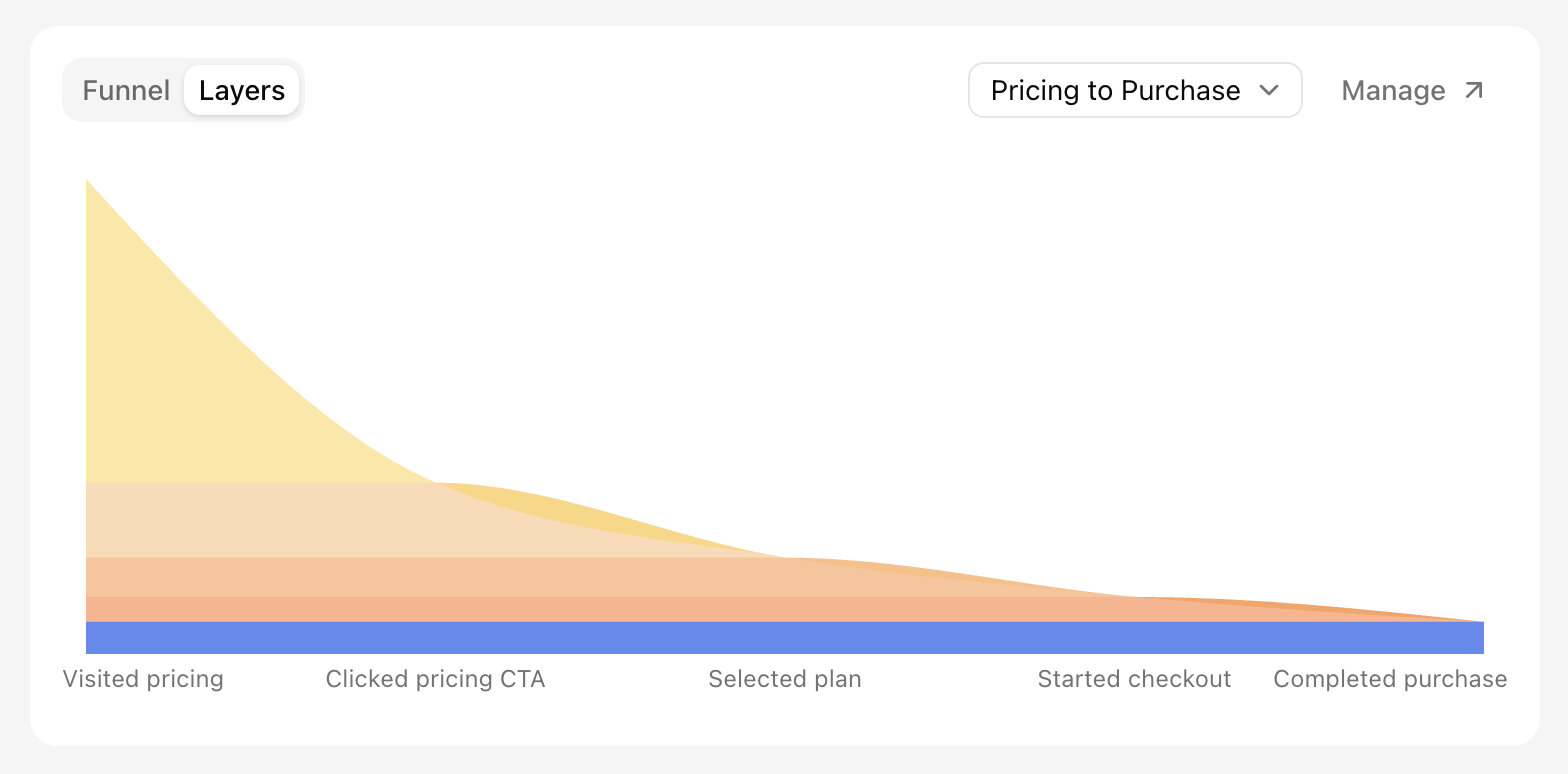
If the widget shows No data yet, no visitors entered the funnel (matched step 1) in the selected period.
The Funnels page
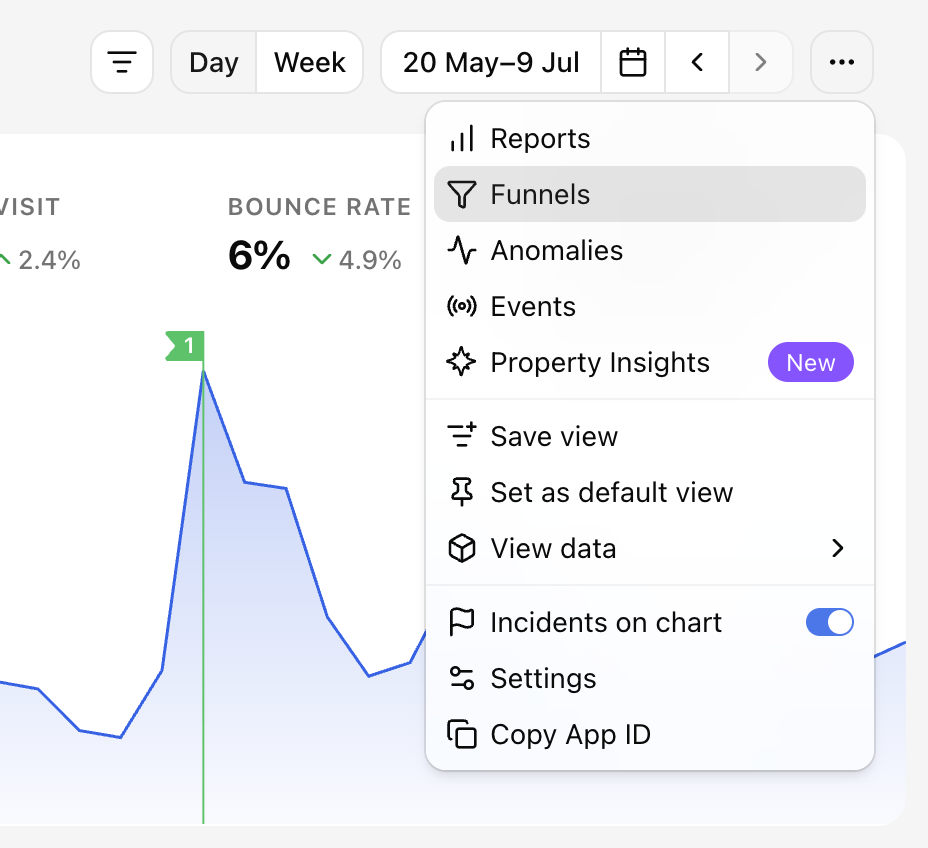
The Funnels page shows every funnel of a property in one list. Open it from the property section menu, next to Reports, Anomalies, and Events.
Each row shows the funnel name, its number of steps, and the period totals — conversions and conversion rate — with a small daily bar chart next to each number. Click a row to expand the step-by-step breakdown: every step with its count, the share of everyone who entered the funnel, and how many people dropped before reaching it.
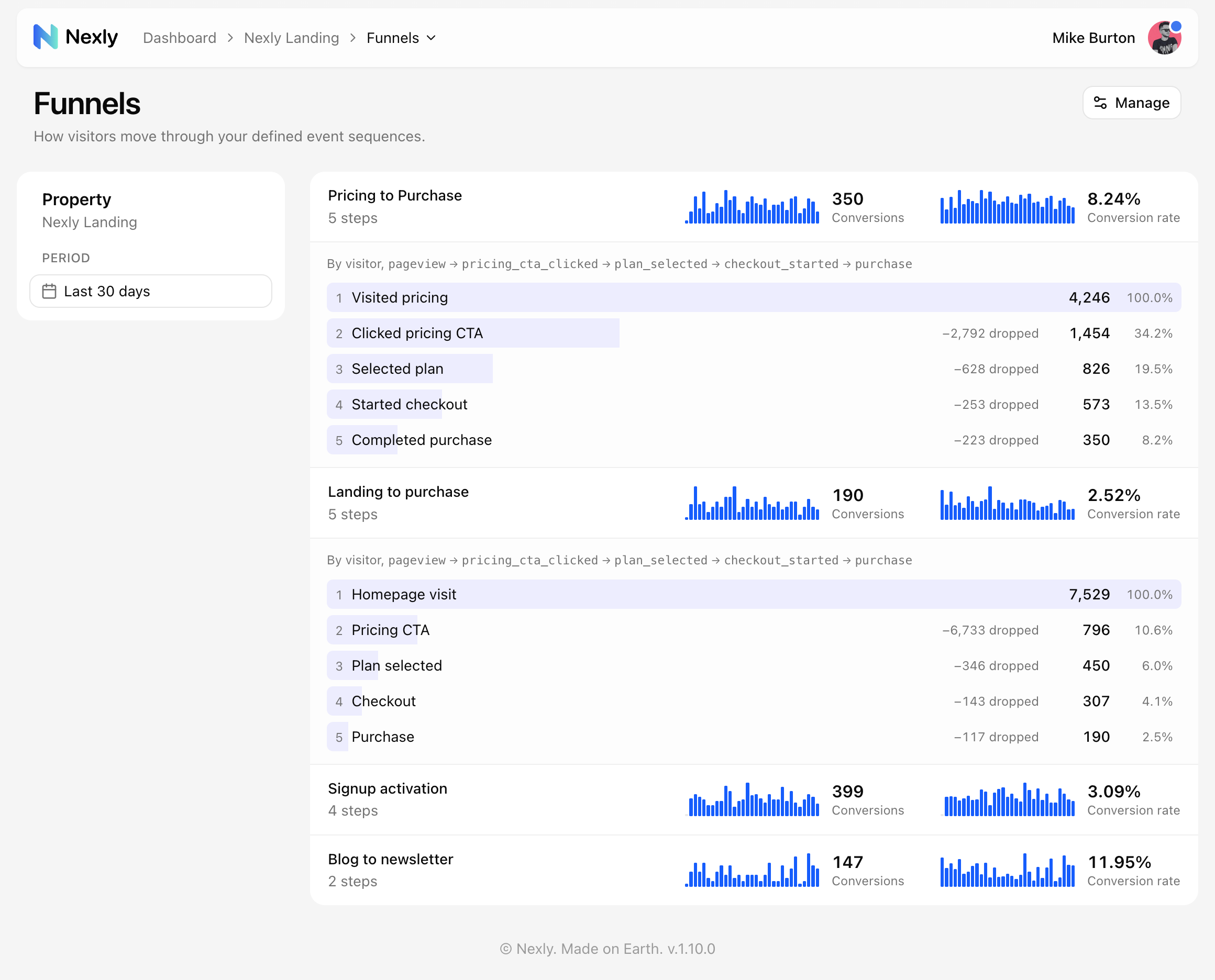
Use the Period selector in the sidebar to switch between the last 7, 30, and 90 days. The Manage button in the header leads to Settings → Funnels; it is visible to members with the Editor role or higher.
Edit or remove a funnel
In Settings → Funnels, click a funnel name to edit it, or use the trash button to remove it. Removing a funnel only deletes its definition — your events are not affected, and you can recreate the funnel at any time.
Viewing funnels is available to every member of the property; creating, editing, and removing them requires the Editor role or higher.
Tips
- Approve the custom events you plan to use before creating the funnel — only active events are selectable as steps.
- Start with 2–3 broad steps and refine with data filters later; overly specific funnels often show zero data at first.
- Use Visitor counting for conversion journeys that span days and Session counting for single-visit flows like checkout.