Google Search Console
Google Search Console tells you what people typed into Google before they landed on your site. Nexly imports that data once a property is connected and shows it in a dedicated Search section, as a Search tab in the Acquisition widget, and to Insights when you ask about search performance. Everything stays read-only: Nexly never changes anything in your Search Console account.
Connect a property
Connecting requires the Admin or Owner role, because the Google authorization acts for the whole property. Viewers and Editors see the imported data but cannot connect, change, or disconnect the Google account. Roles are explained in Team roles and access.
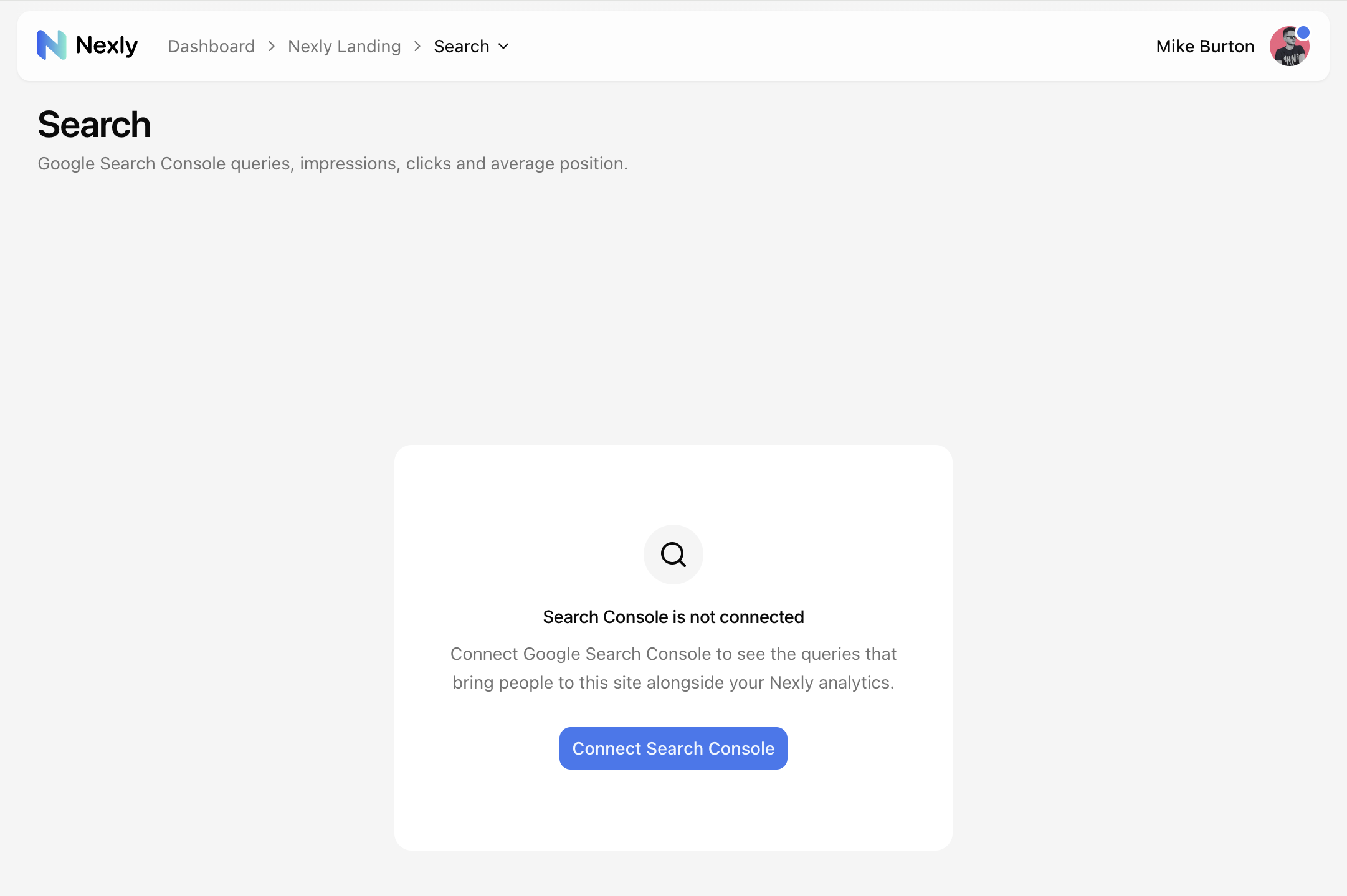
- Open the property, choose Settings → Search Console, and click Connect with Google.
- Sign in with a Google account that has access to the site in Search Console and allow read-only access to Search Console data. If you untick that permission in Google's consent screen, the connection is not saved and Nexly asks you to try again.
- Pick the Search Console property that matches this Nexly property. Both Domain properties (
sc-domain:example.com) and URL-prefix properties (https://example.com/) are supported.
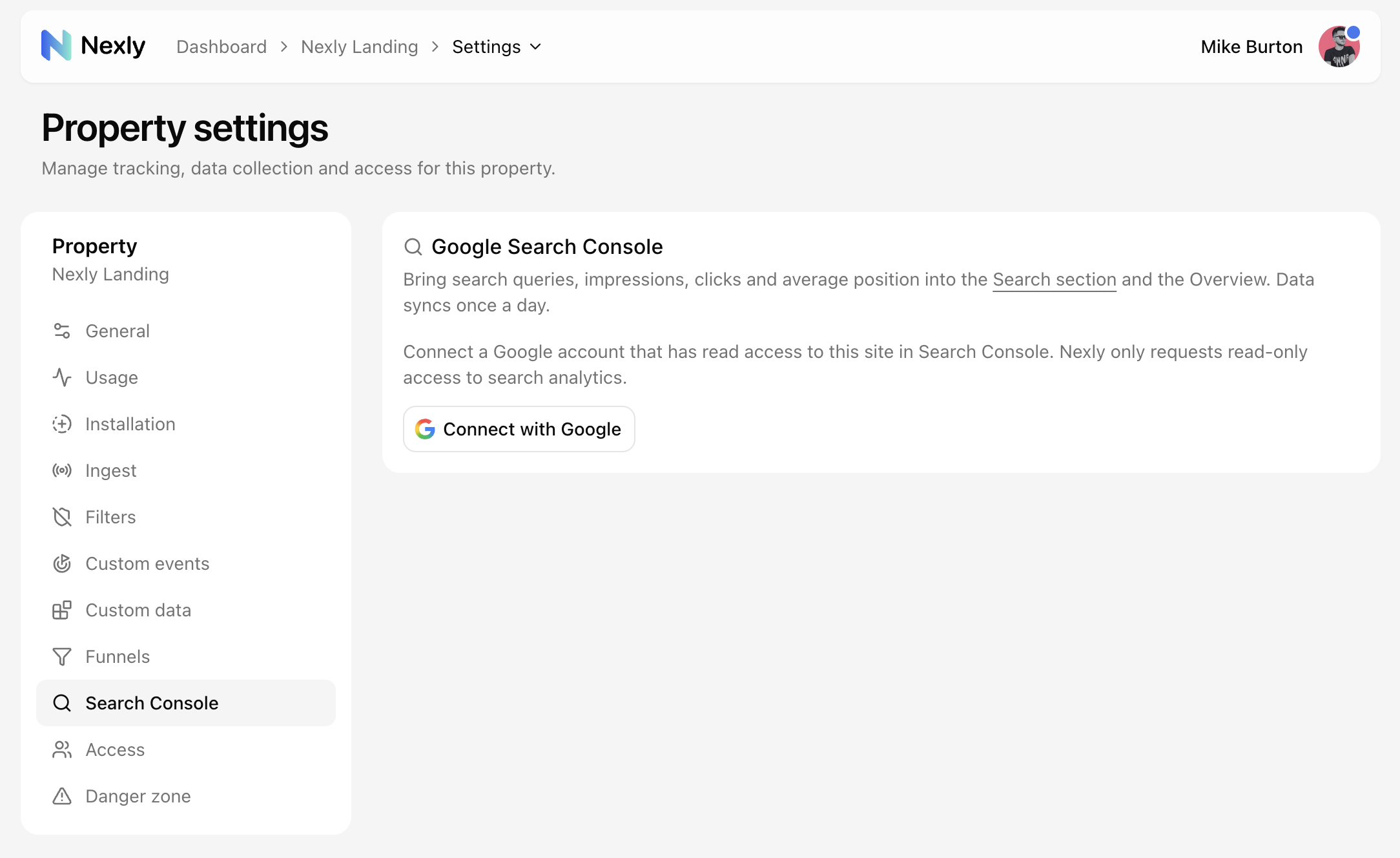
You can also start from the Search section itself. Until a property is connected, it shows a Connect Search Console button that leads to the same settings page.
What the settings page shows
Once connected, the settings page shows the Google account that was used, who connected it, when the last import ran, the selected site, and how far the data reaches.
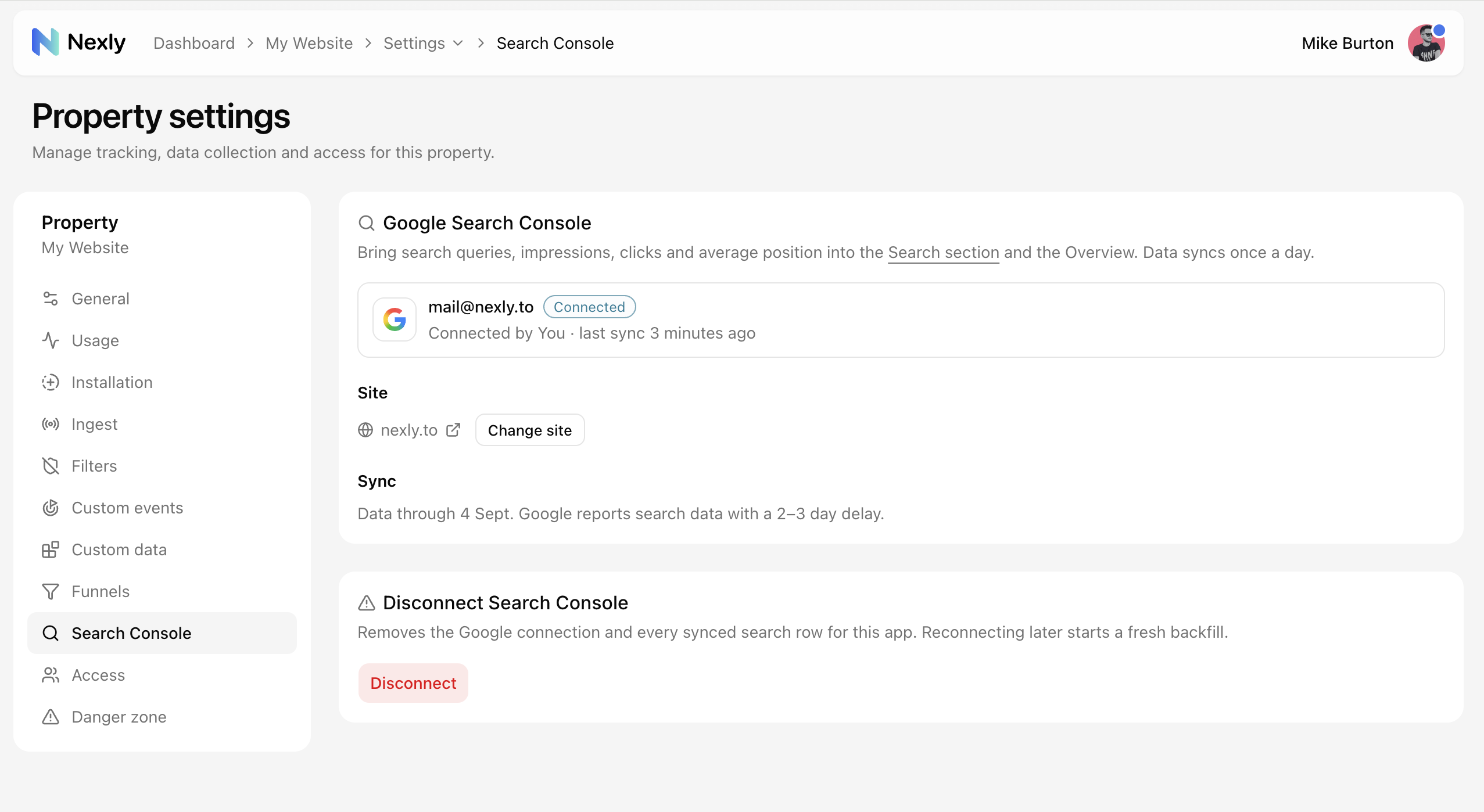
- Change site switches to a different Search Console property from the same Google account. Data already imported for the previous site is removed and the new site is imported from scratch, starting immediately.
- Reconnect with Google appears when Google stops accepting the saved authorization, for example after the password was changed or access was revoked in the Google account. Imports pause until you reconnect; nothing already imported is lost.
- Disconnect removes the Google connection together with every imported search row for this property. Connecting again later starts a fresh import. The action asks you to type the site name to confirm.
How fresh the data is
Google publishes Search Console data with a delay of about two to three days, so the newest day you see in Nexly is always a few days behind today. The Data through note on the Search section and on the settings page tells you exactly which day the data reaches.
Choosing a site starts the first import right away: Nexly pulls the history Google keeps, up to 16 months, and the settings page shows how far the import has reached while it runs. A long history usually takes a few minutes. After that, Nexly checks for new days every hour and imports what Google has published.
The Search tab of the Acquisition widget on the Overview follows the dashboard period. When that period is entirely newer than the data Google has published — for example Today or Last 24 hours — the tab shows the latest available days of the same length instead and marks itself with a small warning icon; hover it to see which day the data reaches.
Sync now in the Sync section of the settings page starts an import on demand. It is useful if you suspect a day is missing; on a property that is already up to date it finishes immediately, because Google has not published anything newer yet. Admins and the Owner can use it.
The Search section
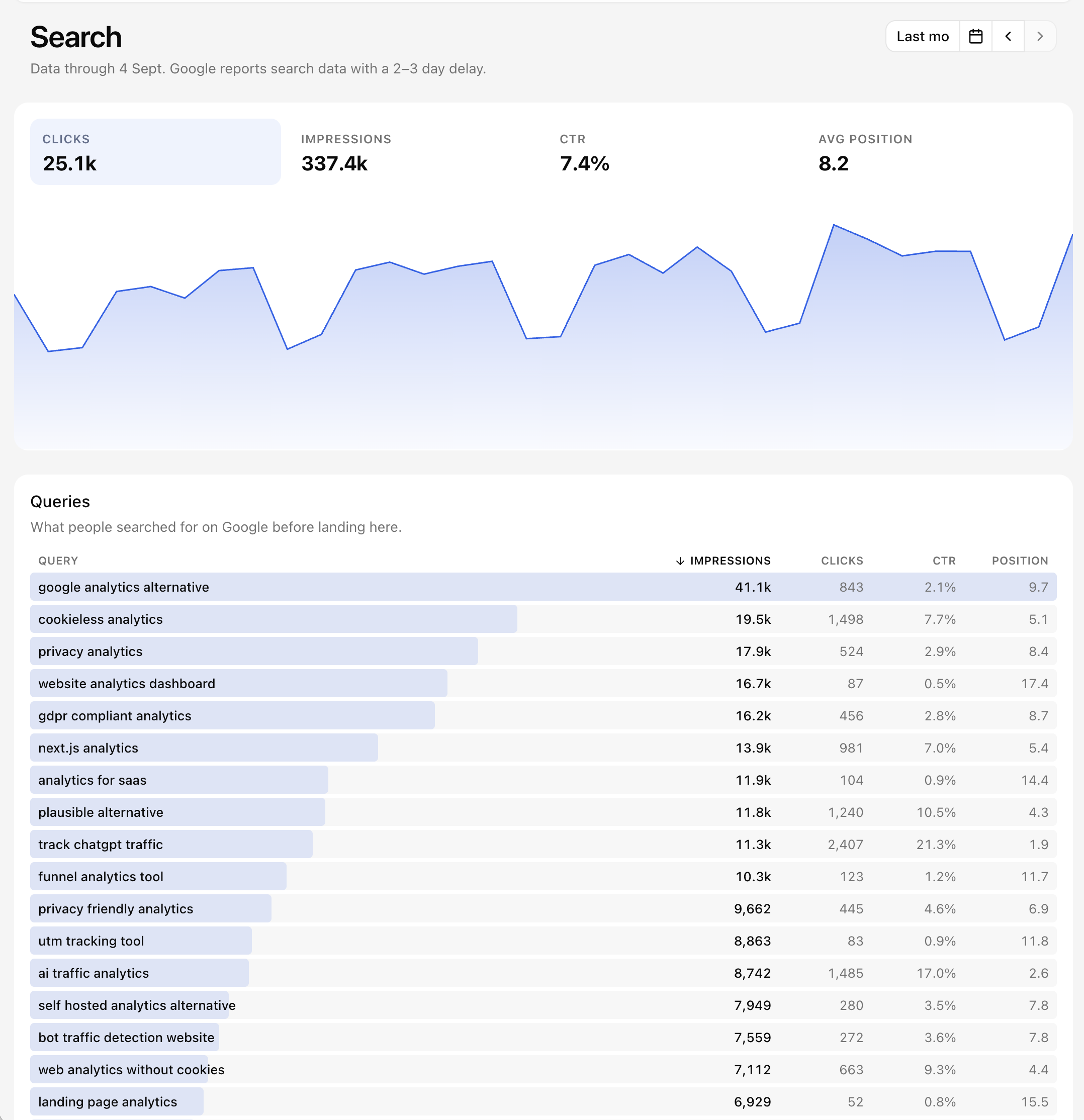
The Search section is available in the property navigation next to Overview, Reports, Funnels, Anomalies, and Events. It answers four questions for the selected period:
- Clicks: how many times a Google result for your site was clicked.
- Impressions: how many times your site appeared in Google results.
- CTR: clicks divided by impressions.
- Avg position: the average ranking of your pages in those results; lower is better.
Select a tile to plot that metric over time, and enable a comparison in the date picker to see the previous period alongside it. Because Search Console data is daily, the date picker offers whole-day ranges only, and each range ends on the newest day that has data, so Last 7 days means the last seven days Google has published, not the seven calendar days ending today.
Below the chart, Queries lists what people searched for on Google before landing on your site, with impressions, clicks, CTR, and position per query. Click a column header to sort by it.
Landing pages lists the pages Google sent people to, with the same metrics, plus the Visitors and Entries Nexly recorded for the same page in the same period. Reading them together shows how a page performs in Google next to what actually happened on the page afterwards.
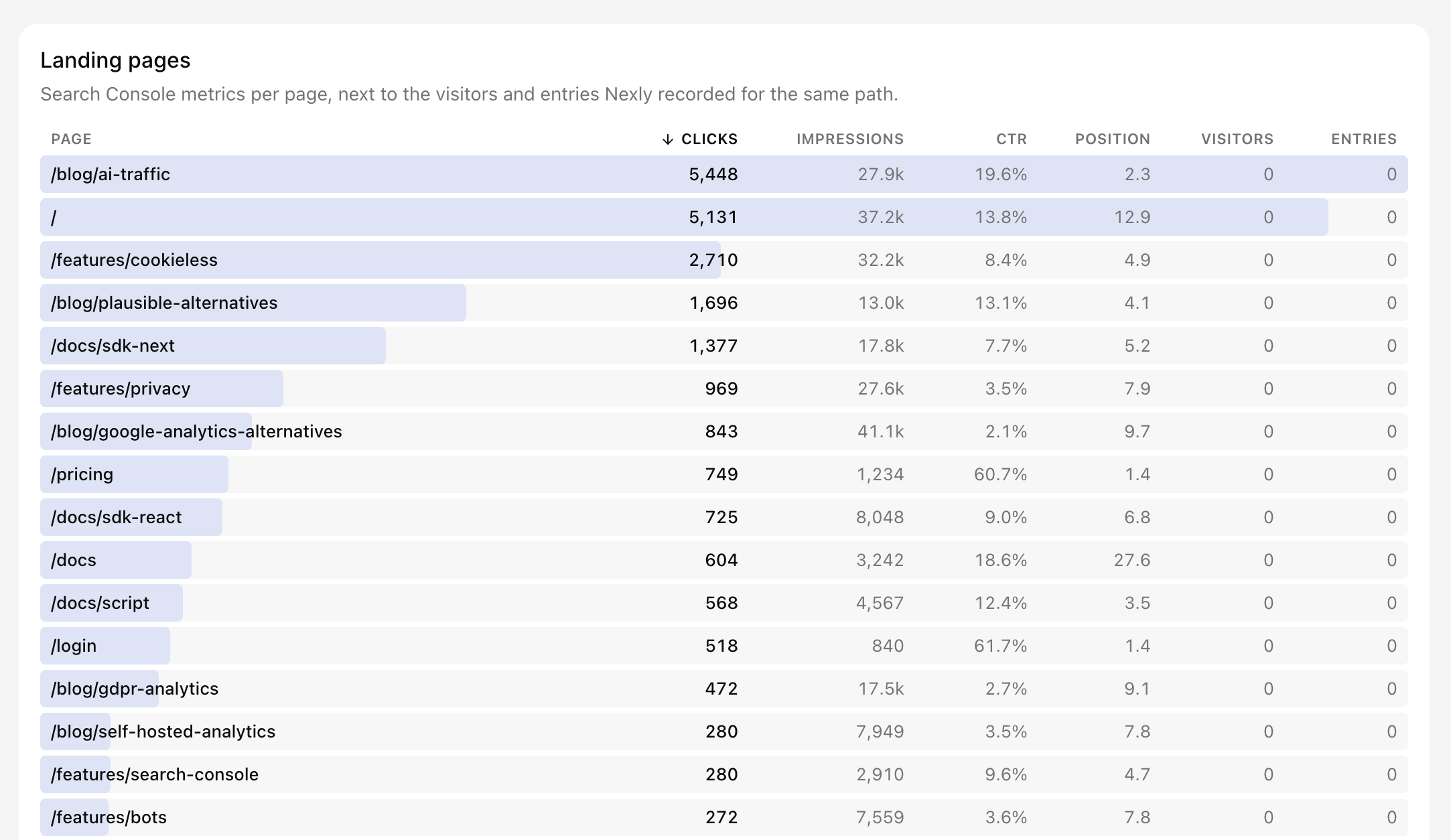
Dashboard filters do not apply to Search Console data. Google reports search traffic separately from the visits Nexly records, so the Search section always shows the whole property.
The Search tab on the Overview
The Acquisition widget on the Overview gets a Search tab with the top queries by impressions for the dashboard date range. View all opens the Search section. Expanding the widget adds clicks, CTR, and position to each row.
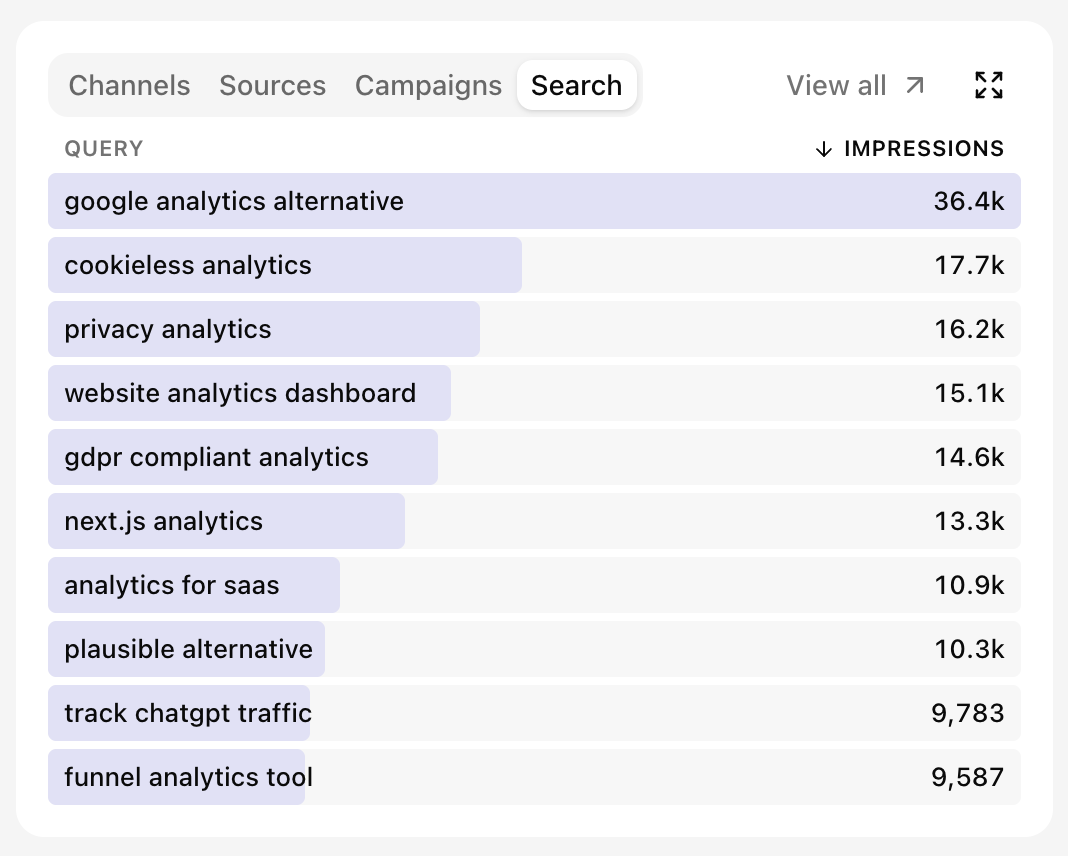
The Overview range usually ends today, which is inside Google's publishing delay. When the selected range has no published days yet, the tab says so and names the newest day that does have data.
Search Console in Insights
Once a property is connected, Insights can answer questions about search performance for that property, such as which queries gained impressions last month or which landing pages get many impressions but few clicks. Insights reads the same imported data and follows the same access rules as the dashboard.