Saved and shared views
Saved views preserve a useful dashboard state so you can return to it later without rebuilding filters, date ranges, or widget settings.
What a view saves
A saved view can include:
- Date range.
- Comparison settings.
- Dashboard filters.
- Filter mode.
- Selected metric.
- Widget tabs and sorting.
Use saved views for recurring workflows such as weekly acquisition review, product launch monitoring, regional performance, or custom event funnels.
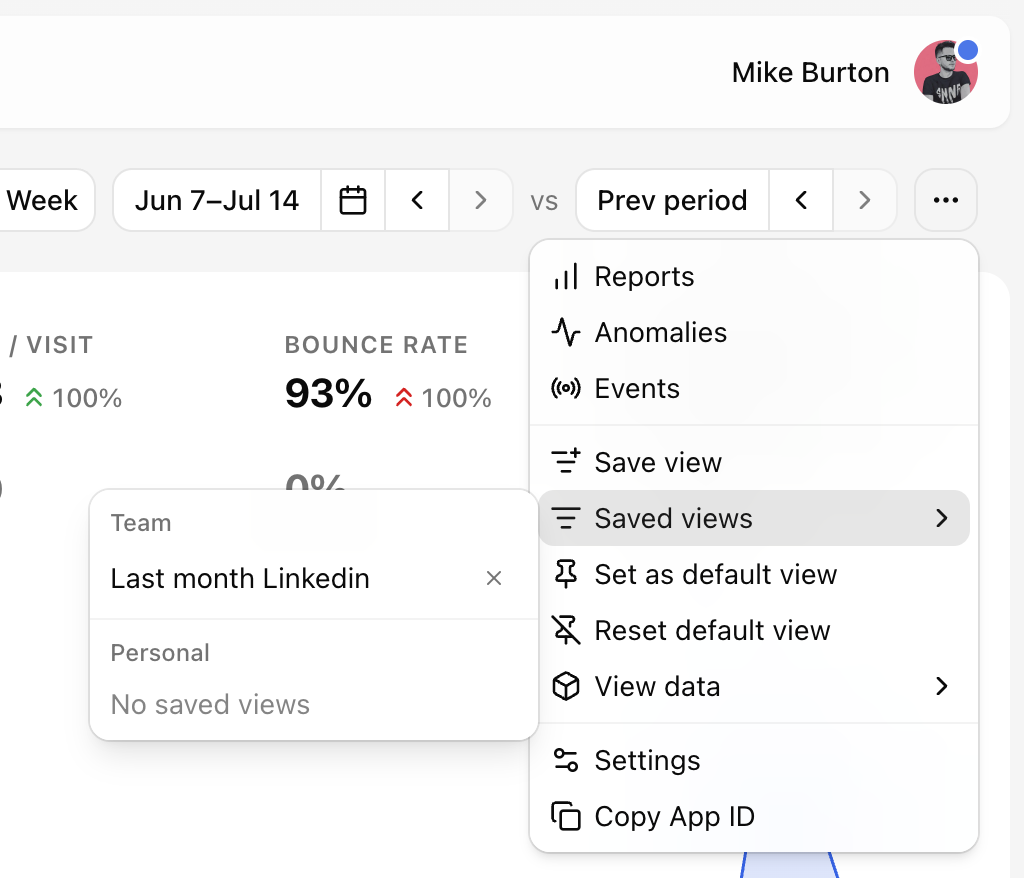
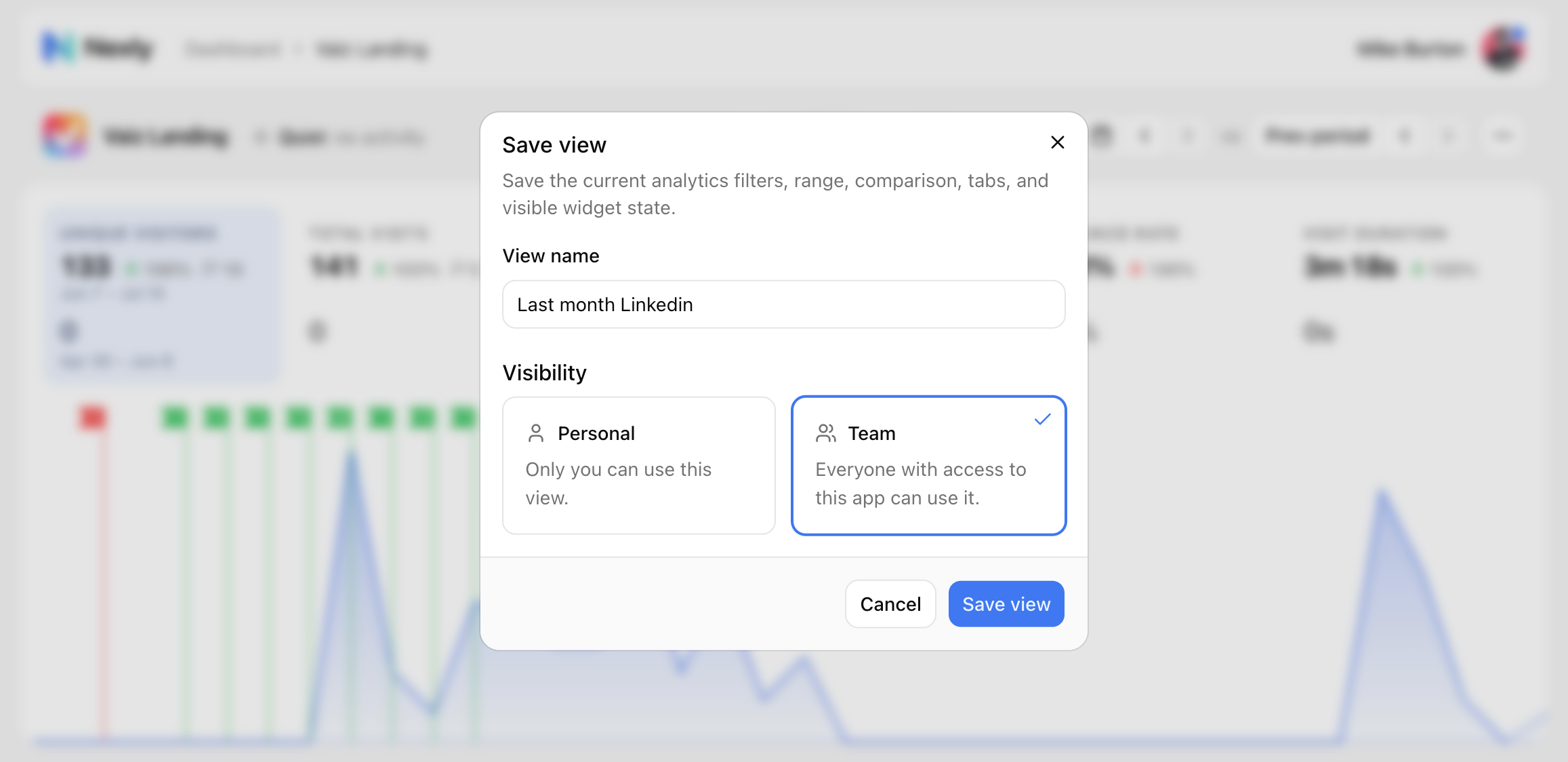
Save the current state with Save view in the dashboard … menu, and reopen views later from Saved views in the same menu.
Personal views
Personal views are visible to you. They are useful for individual workflows and experiments.
Any role that can view the dashboard can save personal views.
Team views
Team views are visible to teammates with access to the property. They are useful when everyone should start from the same dashboard state.
Creating or deleting team views requires the Editor role or higher.
Default views
A default view opens automatically when you visit the property dashboard. It is a personal, per-browser preference: Set as default view saves the current dashboard state on this device and does not affect teammates.
Avoid setting a very narrow default view unless that slice is what you always want to start from.
Sharing a view
Shared views are for teammates who already have access to the property: send them a saved view name or a dashboard URL to inspect the same slice. To share analytics with people outside the team, the property owner can enable a public read-only dashboard — see Team roles and access.
If a teammate cannot open a view, check that they still have access to the property and that the view is not personal to another user.
Updating or deleting views
Saved views cannot be edited in place. To update one, save a new view with the changed date range, filter set, or widget tabs, then delete the old one.
Delete views that are obsolete, confusing, or tied to one-time investigations.
Export and import
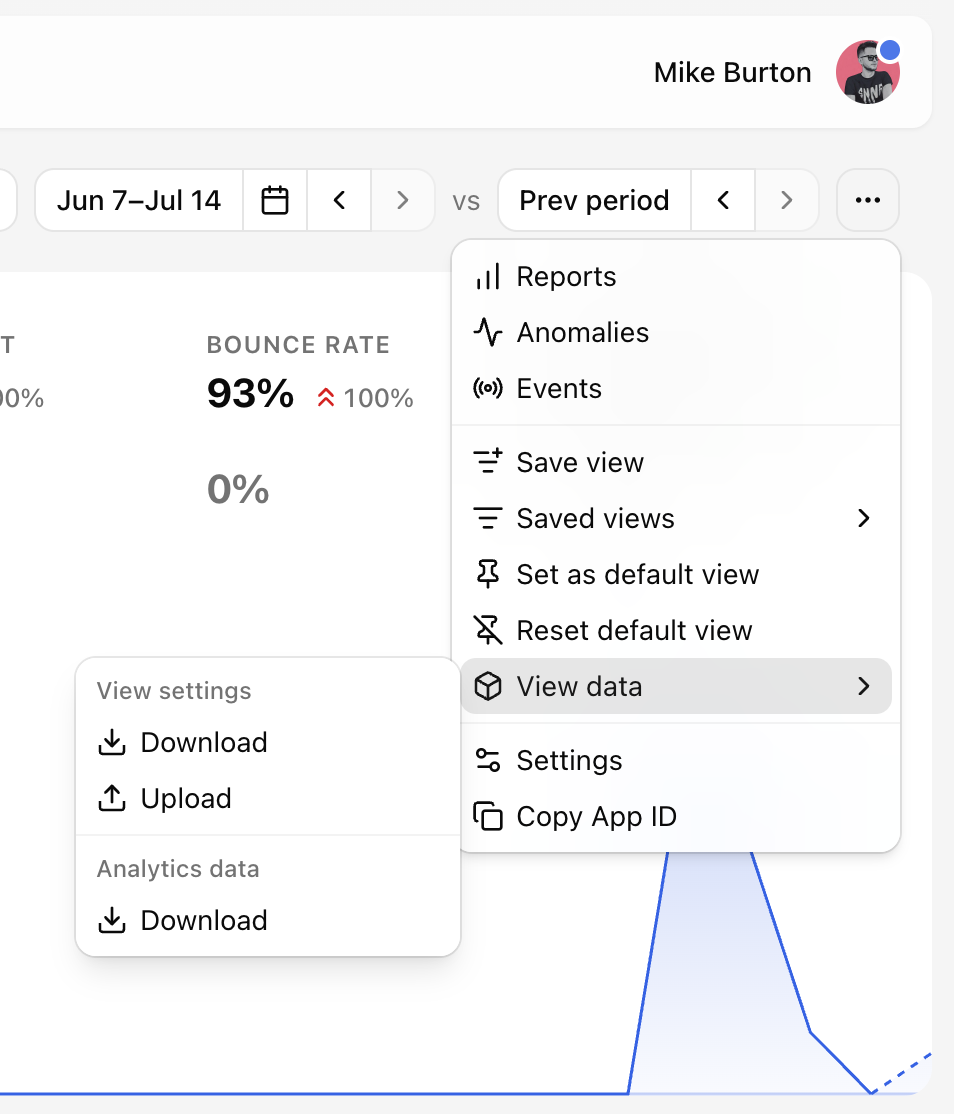
The View data entry in the dashboard … menu lets you download the current view settings as a file, upload them into another property, and download the analytics data behind the current dashboard state.