Ingest settings
Ingest settings control what future events Nexly accepts for a property. These settings affect collection, not just dashboard display, so they are limited to admins and owners.
Allowed origins
Allowed origins control which browser origins can send web events to the property.
Add each production domain that should send web traffic. Use the full origin form, such as https://example.com.
A web origin is not required when Mobile apps or Backend SDK traffic is enabled and you do not collect browser events yet. In that case mobile and server SDKs can send events while the allowed-origins list is empty; browser traffic is rejected until you add a site origin.
Removing an origin stops future events from that origin. It does not delete data already collected.
SDK traffic sources
Web traffic is controlled by allowed origins. Mobile and backend SDKs are enabled with dedicated toggles instead:
- Mobile apps — events from the React Native, Flutter, native iOS (Swift), and Kotlin (Android) SDKs. One toggle manages all mobile platforms.
- Backend — server-side events from the Node.js SDK.
Enable only the sources your property actually uses. Creating a mobile property during setup turns on Mobile apps automatically; enable Backend here when you send server-side events.
Without a browser origin, web events stay blocked while mobile and backend collection continues to work, and Ingest settings shows a distinct empty-state message. Add a site origin under Allowed origins when browser traffic should be accepted.
Ingest key
The ingest key authorizes SDK collection for the property. It is visible in Installation settings because browser SDKs need it to send events.
Rotate the key if it is exposed in the wrong place. After rotation, update every application using the old key or traffic will stop arriving.
Pause ingestion
Pause ingestion when you want Nexly to accept collect requests but stop writing new events. The pause and resume controls live in Property settings → Danger zone — see Danger zone.
Paused ingestion is useful during migrations, accidental traffic spikes, or temporary investigations. The live indicator shows the property as paused.
Resuming ingestion only affects future events. Events dropped while paused are not backfilled.
Ingest filters
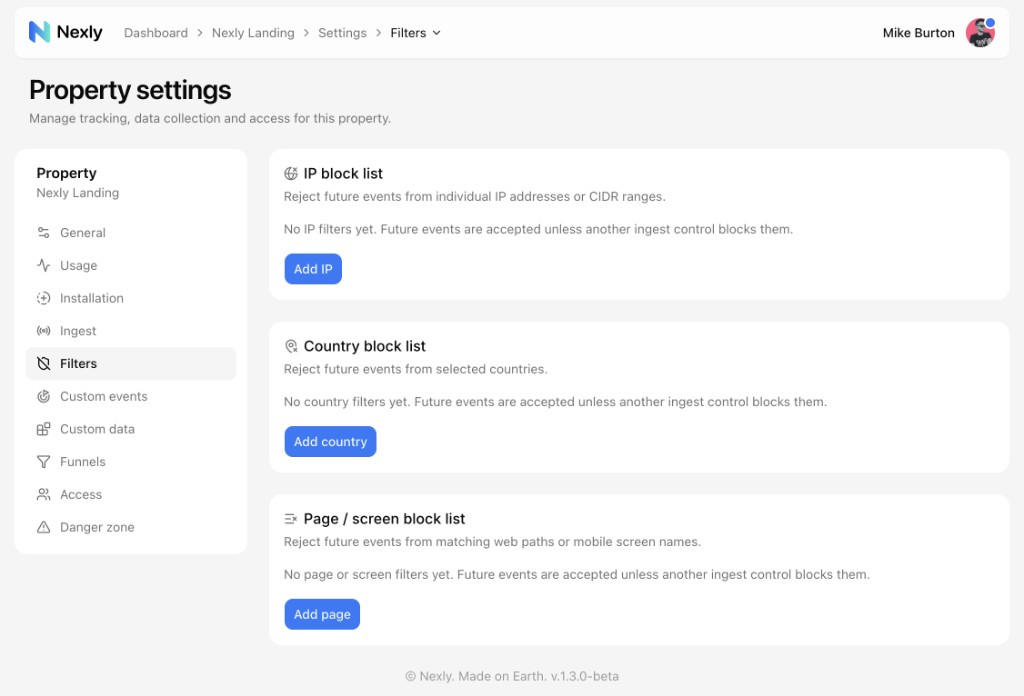
Ingest filters block matching future events before they are stored. Manage them in Property settings → Filters.
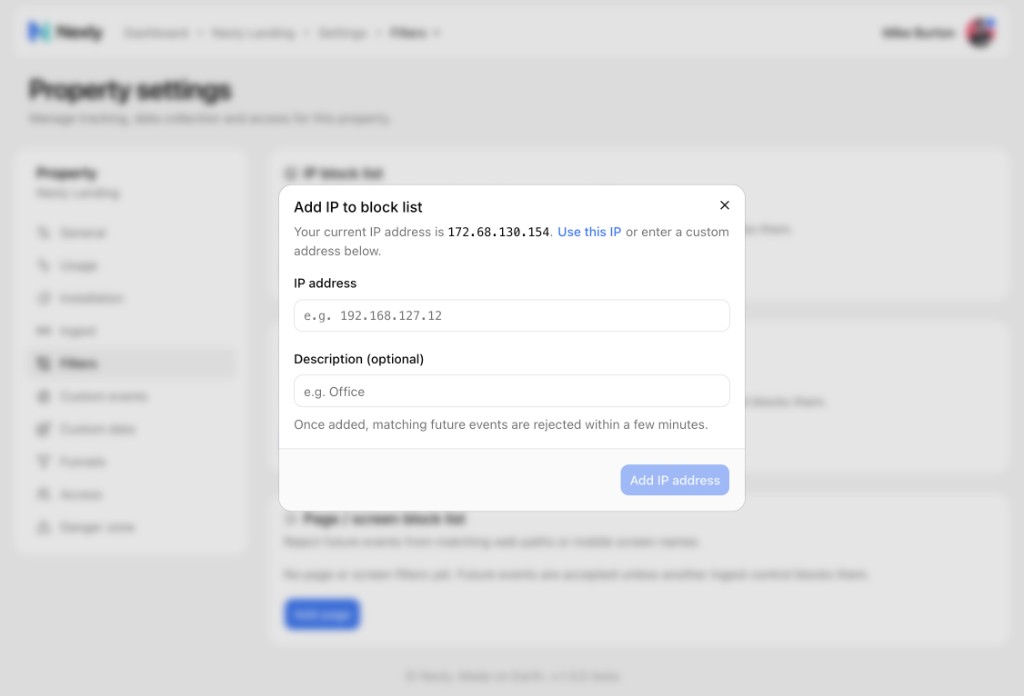
IP and CIDR
Block individual IP addresses or ranges. The dialog shows your current IP address so you can exclude your own traffic in one click.
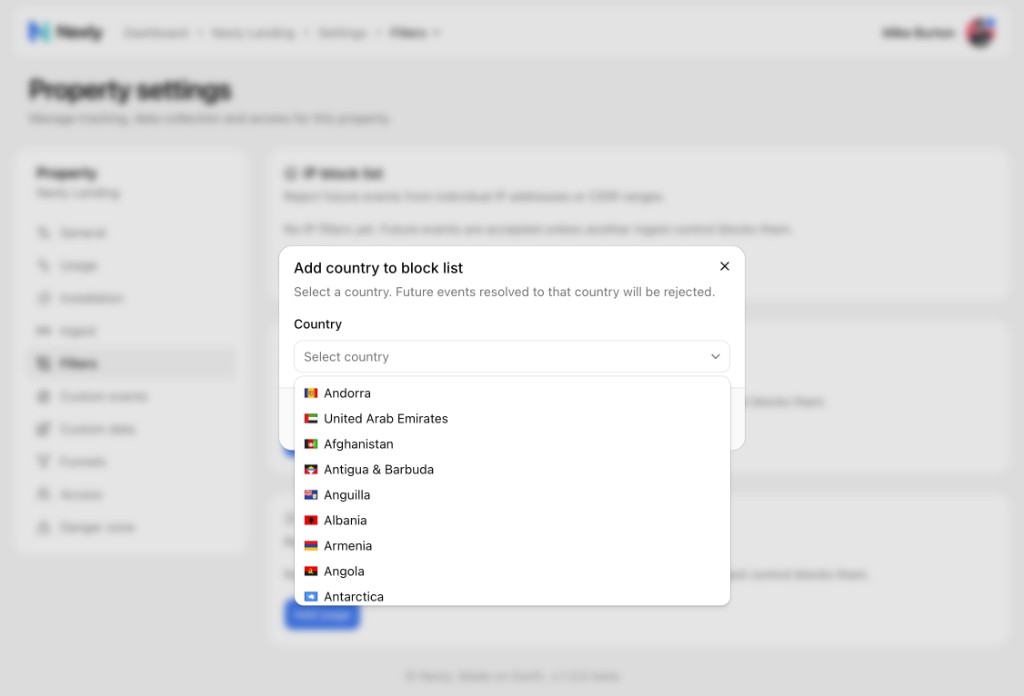
Countries
Block countries. Pick a country from the list; future events resolved to it are rejected.
Pages and screens
Block web paths or mobile screen names. Select a recent path or enter a custom path, screen name, or wildcard pattern.
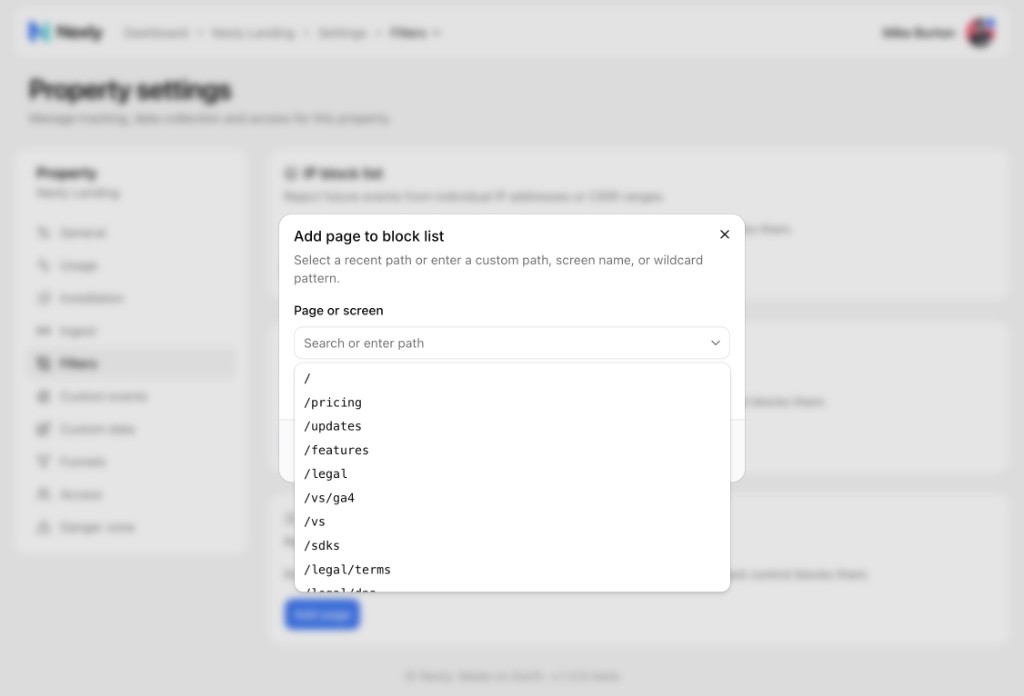
Path and screen filters use prefix matching by default. Patterns can include * wildcards. Avoid broad patterns such as * or / unless you intentionally want to block nearly all traffic.
Dashboard filters are different
Ingest filters reject future collection. Dashboard filters only change how already-stored data is viewed.
Use dashboard filters for analysis. Use ingest filters only when traffic should not be collected at all.