Two-factor authentication
Two-factor authentication adds a second step to sign-in. After entering your password, you also enter a one-time code from an authenticator app.
Password, passkeys, and two-factor authentication all live in Account settings → Security.
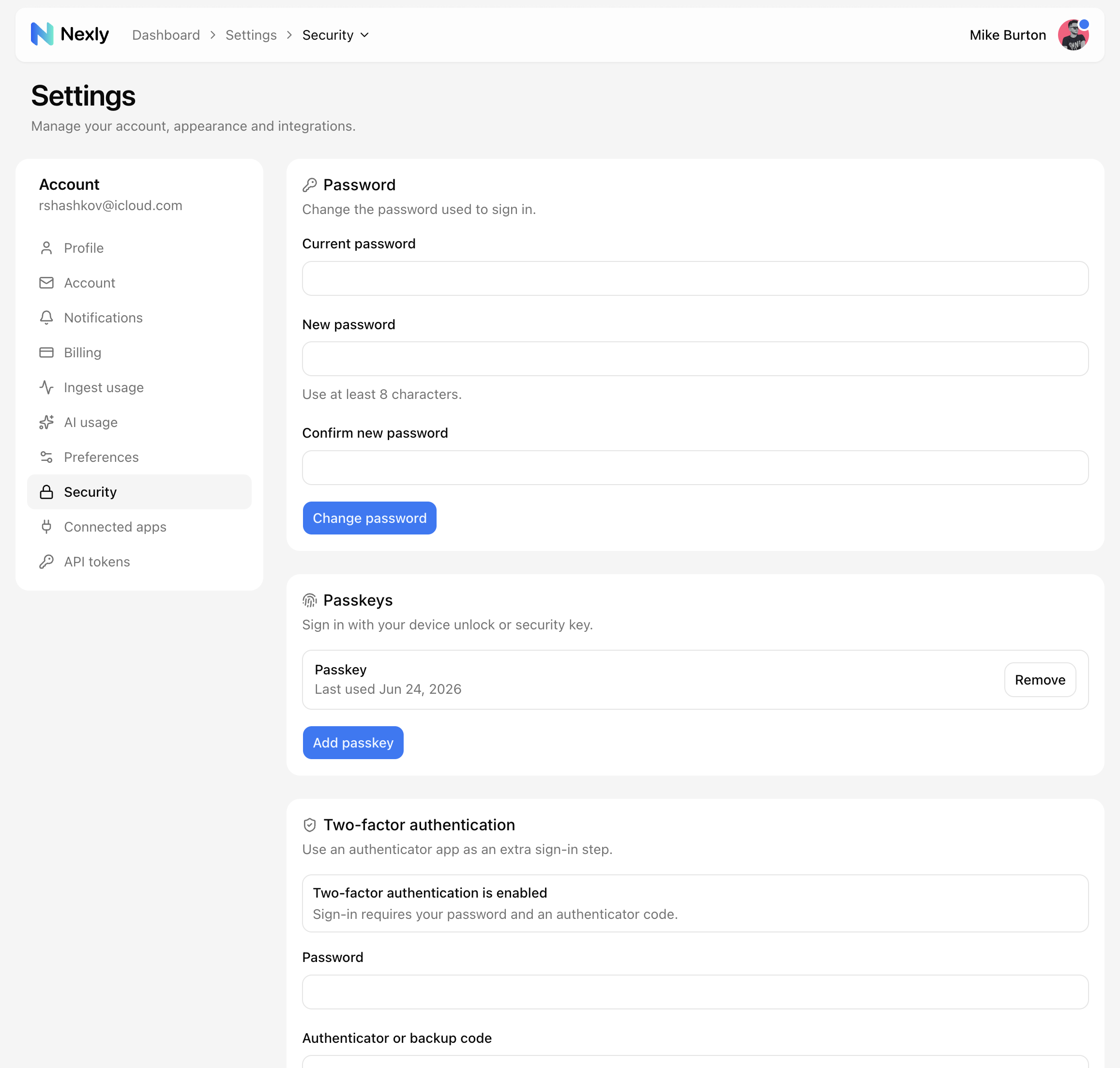
Set up 2FA
- Open Account settings → Security.
- Choose Set up authenticator app.
- Add the setup key to your authenticator app — paste the key, or use the setup URI if your app accepts one.
- Enter the current one-time code to confirm setup.
- Store the backup codes somewhere safe.
Use an authenticator app such as 1Password, Bitwarden, Google Authenticator, iCloud Passwords, or another TOTP-compatible app.
Sign in with 2FA
After 2FA is enabled, Nexly asks for an authenticator code after your password is accepted.
Authenticator codes change frequently. If a code fails, wait for the next code and try again.
Backup codes
Backup codes let you sign in when you lose access to your authenticator app.
Each backup code should be used only once. Store them in a password manager or another secure place that you can access without your phone.
Disable 2FA
You can disable 2FA from Account settings → Security after confirming your current security state.
Disable 2FA only if you are replacing it with another secure sign-in method or no longer need the extra protection.