Passkeys
Passkeys let you sign in with your device, password manager, or security key instead of typing a password every time.
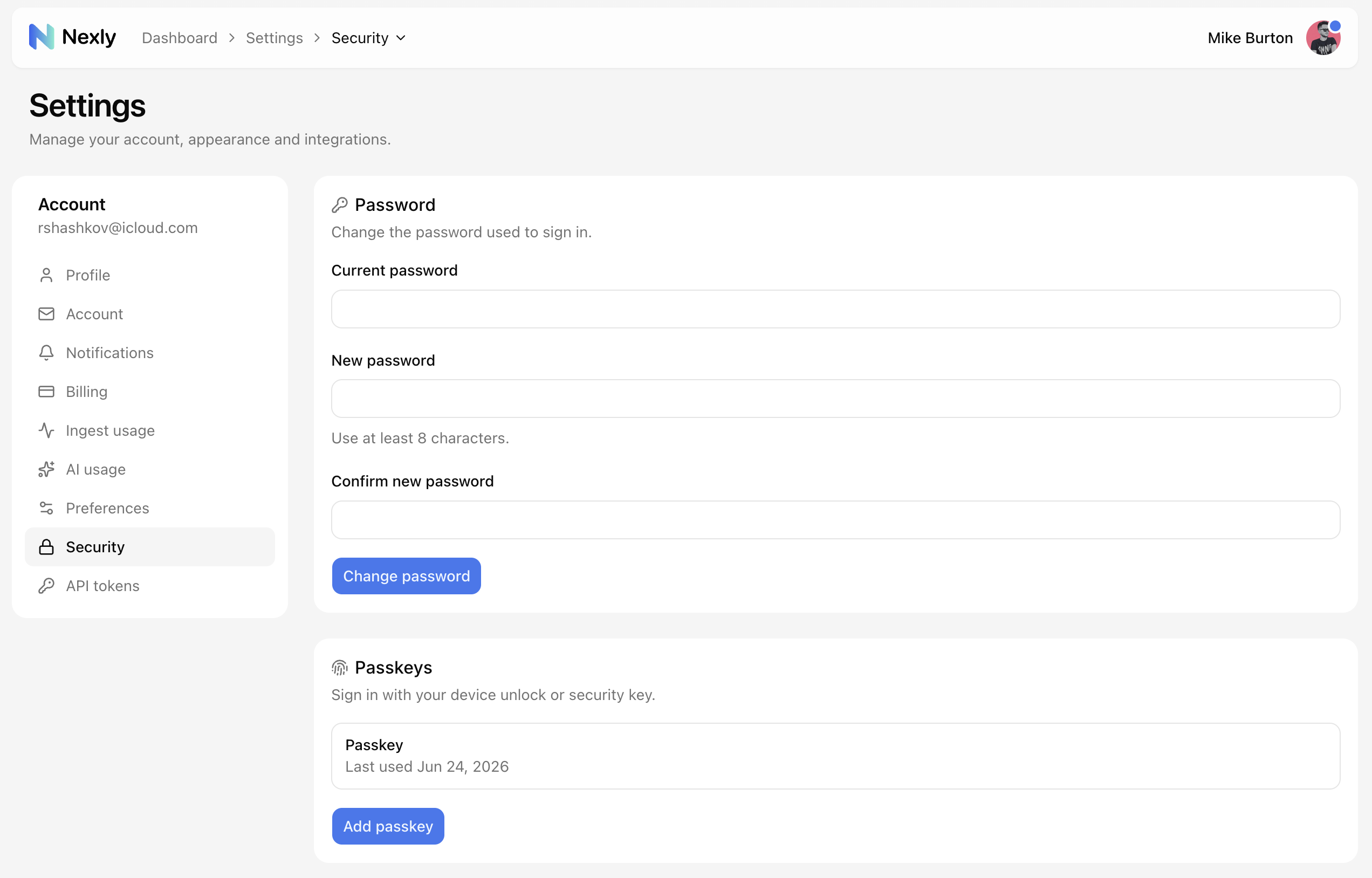
Add a passkey
- Open Account settings → Security.
- Find the Passkeys section.
- Choose Add passkey.
- Follow the browser or device prompt.
You can add more than one passkey. This is useful when you use multiple devices or a hardware security key.
Sign in with a passkey
On the sign-in page, choose the passkey option and approve the browser or device prompt.
Depending on your browser and password manager, you may not need to type your email before the passkey prompt appears.
Remove a passkey
Remove passkeys you no longer use from Account settings → Security.
Before removing your only passkey, confirm that you can still sign in with your password or another passkey.
Passkeys and 2FA
Passkeys and two-factor authentication solve different parts of account security.
A passkey is a sign-in method. Two-factor authentication is an extra challenge after password sign-in. You can use both if your account security workflow requires it.